
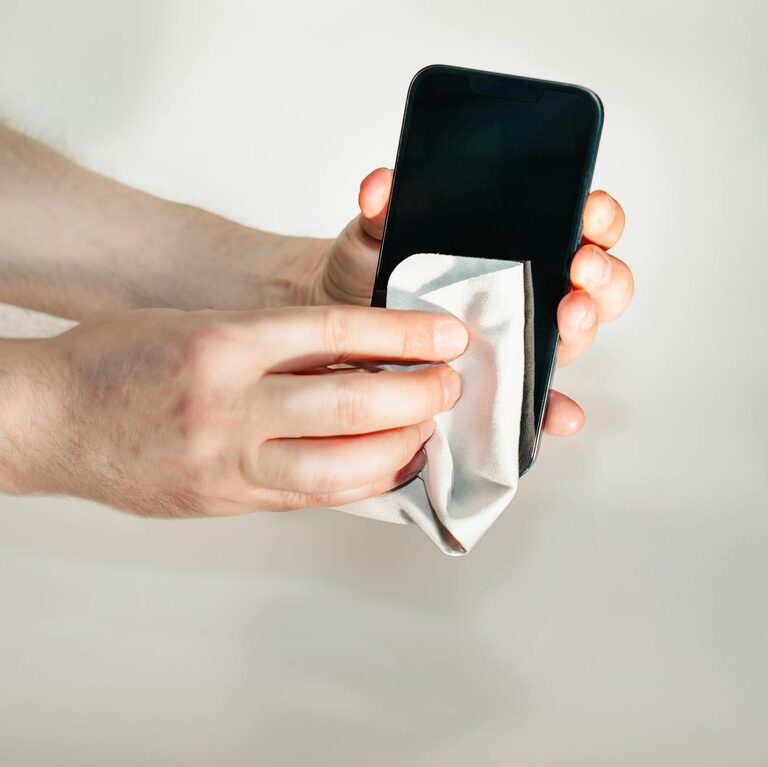
Keeping your phone and keyboard clean is important for both hygiene and maintaining their performance. These everyday gadgets can accumulate dust, dirt, and germs over time. However, cleaning them improperly can cause damage. This guide will walk you through safe and effective ways to clean your phone and keyboard, so you can enjoy a cleaner, healthier workspace.
Why Cleaning Your Devices Matters
Phones and keyboards are among the most frequently touched items. Studies have shown that these devices can harbor more bacteria than some common household surfaces. Regular cleaning helps:
– Reduce germs and bacteria buildup
– Prevent sticky or malfunctioning keys
– Maintain screen clarity and touch response
– Extend the life of your devices
Being mindful of how and when you clean your devices can keep them looking good and working well.
How Often Should You Clean?
– Phone: Daily or every couple of days, especially if you take it outdoors or to public places
– Keyboard: Weekly or whenever you notice visible dust or crumbs
Frequent light cleaning is better than occasional deep cleaning that risks damage.
What You’ll Need
Before you start, gather these safe cleaning supplies:
– Microfiber cloths (soft, lint-free)
– Distilled water (tap water can leave spots)
– Isopropyl alcohol (70% or less, for disinfecting)
– Cotton swabs
– Soft brush or compressed air can
– Small bowl for mixing solution
Avoid harsh chemicals, household cleaners, or abrasive materials that can harm your devices.
—
Cleaning Your Phone Safely
Step 1: Power Off Your Phone
Turn off your device and unplug any cables. This prevents accidental damage and keeps you safe during cleaning.
Step 2: Remove the Case and Accessories
Take off your phone case, screen protector, or any attachments. These can be cleaned separately with mild soap and water.
Step 3: Prepare Your Cleaning Solution
Mix equal parts of distilled water and isopropyl alcohol (70% or less) in a small bowl. Never spray liquids directly onto your phone.
Step 4: Wipe the Screen and Body
– Dampen a microfiber cloth lightly with your solution (not dripping wet).
– Gently wipe the screen and phone body in circular motions.
– Avoid excess moisture near ports, speakers, and buttons.
Step 5: Clean Small Crevices
Use a cotton swab dampened with the cleaning solution to carefully clean around buttons, camera lenses, and ports. A soft brush can help remove dirt from speaker grills.
Step 6: Dry Thoroughly
Use a dry microfiber cloth to remove any remaining moisture. Let your phone air dry for a few minutes before turning it back on or reattaching the case.
—
Cleaning Your Keyboard Safely
Step 1: Unplug or Turn Off Your Keyboard
For wired keyboards, unplug it from your computer. For wireless ones, turn it off or remove batteries if possible.
Step 2: Remove Loose Debris
Turn the keyboard upside down and gently shake it to dislodge dust, crumbs, and debris. You can also use compressed air or a soft brush to clean between keys.
Step 3: Wipe Key Surfaces
Dampen a microfiber cloth with distilled water or a mixture of water and isopropyl alcohol (same ratio as phone cleaning). Ensure the cloth is only slightly damp.
Wipe the tops of the keys and keyboard surface, taking care to avoid excess liquid that could drip between keys.
Step 4: Clean Between Keys
Use cotton swabs or a soft brush dipped lightly in the cleaning solution to clean spaces between keys.
If your keyboard has removable keys and you are comfortable removing them, gently pop the keys off and clean underneath with a soft cloth or brush. Be sure to check the manufacturer’s instructions before doing this.
Step 5: Disinfect (Optional)
If you want to disinfect your keyboard due to illness or other concerns, wipe it with a cloth lightly dampened with 70% isopropyl alcohol. Alcohol evaporates quickly and disinfects without damaging most keyboards.
Step 6: Dry Completely
Use a dry cloth or let your keyboard air dry fully before reconnecting or turning it on.
—
Additional Tips for Device Care
– Always wash your hands before and after using your devices to reduce dirt transfer.
– Avoid eating near your keyboard and phone to minimize crumb buildup.
– Store your devices in cases or covers to protect against dust and scratches.
– Use screen protectors to minimize fingerprint smudges and scratches.
– Use gentle cleaning tools designed specifically for electronics when possible.
—
When to Seek Professional Cleaning
If your phone or keyboard has sticky keys, malfunctioning buttons, or sticky screens that you cannot clean yourself, consider professional cleaning or servicing. Avoid opening devices if you are not experienced, as this can void warranties or cause damage.
—
Cleaning your phone and keyboard regularly is a simple habit that can improve hygiene and prolong the life of your devices. By following safe cleaning methods and using the right materials, you can keep your tech looking good and working well without risk. Give your gadgets a little TLC today!